







In a world where your iPhone is practically an extension of yourself, unwanted calls and messages can feel like a digital invasion. Whether it’s an ex who just doesn’t get the hint or that one friend who thinks “reply all” is a sport, blocking someone can restore your peace of mind. Luckily, it’s easier than finding a Wi-Fi signal in a coffee shop.
Overview of Blocking on iPhone
Blocking someone on an iPhone offers users a way to manage unwanted communication. This feature helps maintain control over who can reach them through calls, texts, and even FaceTime. With a few simple steps, individuals can block numbers that cause distress, allowing for a more peaceful experience.
Accessing the blocking feature requires navigating through settings. Users must open the “Phone” app, select “Contacts,” and then find the individual they wish to block. Additionally, users can block numbers directly from recent calls or messages. This flexibility allows easy and quick management of unwanted contacts.
Once a number is blocked, calls, texts, and FaceTime requests from that contact no longer come through. The blocked caller does not receive notifications or alerts indicating this action. Users maintain their privacy while regaining a sense of control over their communication landscape.
Managing blocked contacts is equally straightforward. The iPhone allows users to review and modify their list of blocked numbers at any time. This clarity ensures individuals can make adjustments based on changing circumstances or relationships.
Finding peace of mind in digital communication is crucial. Knowing how to block unwanted contacts can significantly reduce anxiety associated with persistent interactions. This simple yet effective solution empowers users to create a more comfortable digital environment.
Methods to Block a Person
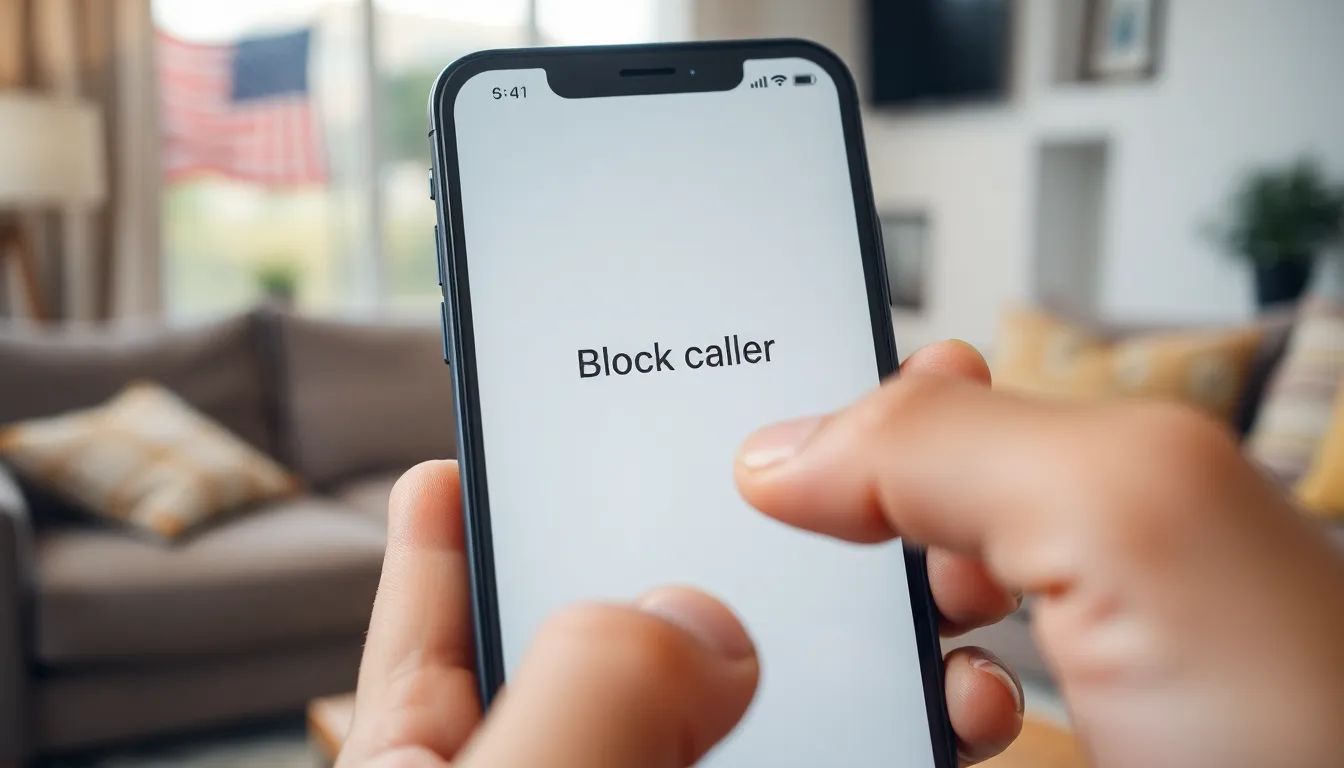
Blocking someone on an iPhone can be done through various apps, each offering straightforward steps to enhance user control over communication.
Blocking via Phone App
Users can start by opening the Phone app to block an individual. Navigating to the “Recents” tab shows the list of recent calls. Tapping the information icon next to the desired number reveals additional options. Selecting “Block this Caller” confirms the action, ensuring no further calls from that number. Additionally, users can access the Contacts section to block someone directly by selecting their name and choosing the same blocking option. This method efficiently reduces unwanted disturbances.
Blocking via Messages App
Blocking contacts through the Messages app provides a similar experience. Opening an unwanted message thread allows access to the sender’s details. Tapping on the contact’s name or number leads to the “info” option. From there, the user can select “Block this Caller” to stop receiving messages. This method effectively prevents further communication from persistent message senders and keeps the user’s inbox clear of distractions.
Blocking via FaceTime
FaceTime users can also block contacts seamlessly. Launching the FaceTime app displays recent calls and video chats. Identifying the unwanted caller involves selecting their name and tapping the information icon. By choosing the “Block this Caller” option, the user prevents future FaceTime calls or messages from that contact. This ensures that the user’s video call experience remains enjoyable and free from unwanted interruptions.
Managing Blocked Contacts
Managing blocked contacts on an iPhone is straightforward, providing users with control over their communication. Both viewing the blocked contacts and unblocking them can enhance the user experience significantly.
Viewing Blocked Contacts List
To view the list of blocked contacts, users navigate to the Settings app. Once inside, they scroll down and select “Phone,” which leads to the “Blocked Contacts” option. Tapping this reveals all numbers currently blocked. Users also find an overview showing which contacts or numbers are restricted from reaching them. Checking this list regularly can help ensure unwanted callers remain blocked.
Unblocking a Contact
Unblocking a contact is just as simple. Users visit the “Blocked Contacts” section in the Phone settings, where they can scroll through the list. Tapping “Edit” allows users to remove contacts from the block list easily. After selecting a contact, hitting the red minus icon reveals an option to “Unblock.” This process reinstates communication with the unblocked contact without any notifications sent to them.
Other Considerations
Blocking a person on an iPhone involves key additional considerations. Users benefit from understanding privacy settings and reporting options for harassment.
Privacy Settings
Adjusting privacy settings enhances a user’s overall experience. Accessing these settings provides options that protect personal information and limit unwanted interactions. By navigating to the Settings app and selecting ‘Privacy,’ users can manage who sees their information across various platforms. Limiting access to contacts, location, and more ensures only trusted individuals can reach them. Regularly reviewing these settings can prevent future annoyances from unwanted contacts or spam.
Reporting Harassment
Reporting harassment proves essential for those facing persistent issues. If a blocked individual continues to harass through other channels, users must report this behavior. In the Messages app, for example, tapping ‘Report Junk’ provides a direct way to alert Apple. Users should gather evidence, such as screenshots or timestamps, to support their claims. Reporting addresses not only personal issues but also contributes to broader protection against harassment. Knowing this option exists can provide added peace of mind while navigating digital communication.
Blocking unwanted contacts on an iPhone is a crucial step toward regaining control over personal communication. With simple navigation through various apps like Phone, Messages, and FaceTime users can effectively manage their interactions. The ability to block and unblock contacts without notifying them ensures privacy and peace of mind.
Additionally users can enhance their digital experience by regularly reviewing their blocked list and adjusting privacy settings. Reporting harassment when necessary further empowers users to protect themselves from unwanted attention. Overall mastering these features allows individuals to create a more comfortable and secure communication environment on their iPhones.