







If you’ve just unboxed your shiny new iPhone and are feeling a little lost, don’t worry. You’re not alone! Many users wonder where the elusive Quick Start feature is hiding. This handy tool can make setting up your device a breeze, but finding it can feel like searching for a needle in a haystack.
Understanding Quick Start on iPhone
Quick Start simplifies the setup process for new iPhone users. This tool enables seamless data transfer and configuration.
What Is Quick Start?
Quick Start functions as an onboarding feature for iPhones. It uses Bluetooth and Wi-Fi to connect a new device to an existing one. By bringing both devices close together, Quick Start allows users to transfer data instantly. It facilitates migration of settings, apps, and account information. Users can complete setup quickly without manual input for each step.
Benefits of Using Quick Start
Using Quick Start offers numerous advantages. First, users experience significant time savings during the setup process. Data transfer happens quickly, reducing the need for lengthy installations. Second, the feature ensures that personal settings from the old device transfer accurately. Consistency across devices promotes a seamless experience. Third, users find it easy to activate various services, such as iCloud and Apple Pay. Quick Start streamlines these configurations, creating an efficient onboarding journey.
Locating Quick Start on iPhone
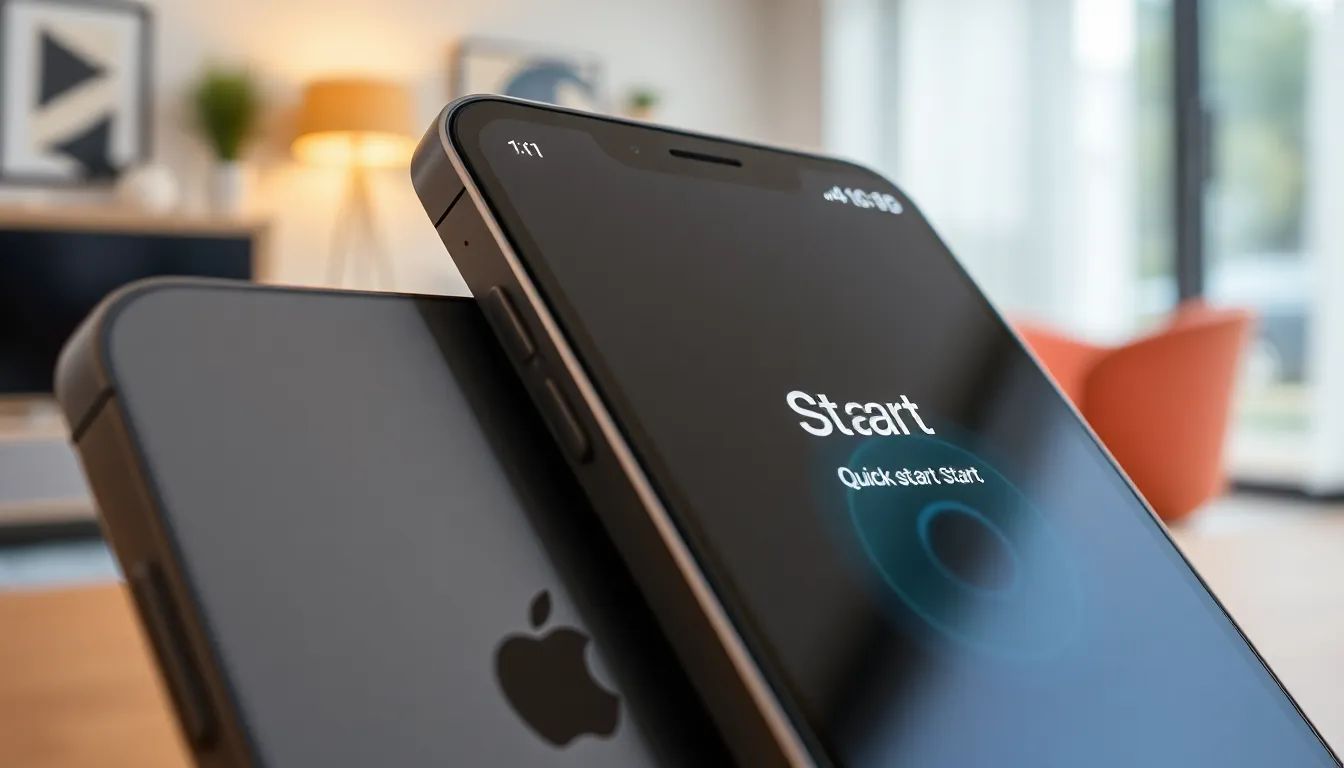
Finding the Quick Start feature on an iPhone is straightforward. This tool simplifies the setup process by allowing users to connect their new device to an existing one.
Steps to Access Quick Start
- Turn on your new iPhone and place it near your old device.
- Unlock the old iPhone. A Quick Start screen will appear on the old device.
- Tap “Continue” when prompted. An animation will display on the new iPhone.
- Hold the old iPhone over the new one, aligning the animation within the camera view.
- Follow the prompts to complete the setup. You’ll be able to transfer all settings and data seamlessly.
Common Issues and Troubleshooting
Network connectivity problems often disrupt Quick Start. Ensure both devices have Wi-Fi enabled and Bluetooth turned on. If the Quick Start screen doesn’t appear, restart both iPhones and try again. In cases of incompatibility, confirm that both devices run compatible iOS versions.
User errors can also occur. For instance, not aligning the camera correctly may result in a failure to establish a connection. By following these troubleshooting tips, users can improve their chances of a smooth setup experience.
Configuring Quick Start Settings
Configuring Quick Start settings allows users to tailor their setup for maximum convenience and efficiency. Adjustments can enhance the experience significantly.
Customizing Your Quick Start Experience
Users can customize Quick Start by selecting specific data to transfer. During setup, prompts will appear, offering options to include or exclude apps and settings. Choices made influence how quickly the transition occurs. Enabling features like Face ID or Touch ID happens seamlessly as part of the Quick Start setup. The personalization of language and region settings also takes place at this stage, ensuring familiarity right from the start.
Syncing with Other Devices
Syncing Quick Start with other devices enhances data transfer flexibility. Users should ensure iCloud is enabled on their old device for a streamlined experience. Once the devices are close together, users confirm connectivity using Bluetooth and Wi-Fi. Data synchronization extends beyond just apps; settings like Wi-Fi passwords and display preferences transfer easily. Additionally, incorporating other Apple devices, such as iPads or Macs, helps create a unified ecosystem where settings synchronize automatically.
Alternatives to Quick Start
New iPhone users can explore various alternatives for setting up their devices. These methods offer different advantages, catering to personal preferences and situations.
Manual Setup Options
Manual setup provides an alternative for those who prefer a hands-on approach. Users can begin by selecting their language and region. Following this, they should connect to a Wi-Fi network to proceed with the setup. Inputting Apple ID credentials is necessary for accessing services like iCloud and the App Store. When manual setup is chosen, users have the flexibility to customize settings right from the start, allowing for a tailored user experience.
Using iCloud for Setup
Using iCloud simplifies the setup process for those transitioning from an older device. Users need to back up their old device with iCloud before starting. Once the backup is complete, they can sign in to their iCloud account on the new iPhone. This method retrieves apps, settings, and data seamlessly. Specifically, contacts, photos, and documents sync automatically, ensuring nothing is lost during the transition. This option offers a convenient way to maintain continuity across devices while minimizing manual data entry.
Navigating the setup process on a new iPhone can be daunting for many users. Quick Start simplifies this journey by allowing seamless data transfer from an old device. By following the straightforward steps outlined, users can enjoy a hassle-free experience while ensuring their settings and preferences are retained.
For those who prefer alternatives, options like manual setup and iCloud backup offer flexibility in configuring their new device. Regardless of the chosen method, understanding these tools empowers users to make the most of their iPhone right from the start. With the right approach, the onboarding experience can be efficient and tailored to individual needs.